
Email Signatures, AGAIN!
What’s Up my SHEEPS?
I know you already read the headline and are dreading allllll the things to follow in this message. It’s a bummer, I know.
Some of you have already done this, so good on ya, but some of you are new here!
HOW TO CHANGE YOUR SIGNATURE:
Find someone who has theirs set up and have them send you an email!
Copy their WHOLE signature including the photo and the HIPAA notice.
Open a new email.
Click on “insert” at the top.
Click on “signature” then in the drop down, click “signatures.”
Once the box opens click the “new” box.
Create a name for your signature.
Place cursor on the box below and right click to paste.
Change your name and title and click save.
Your name should be in Calibri font, size 12, bold and the rest should be Calibri font, size 11. Everything should be dark blue except for the core values!
On the right inside in the pop up, under “choose default signature,” select new messages and choose new signature.
You can test to see if it works by creating a new email message. Your new signature block should show up! TA DA!
When you’re done, it should look like this:
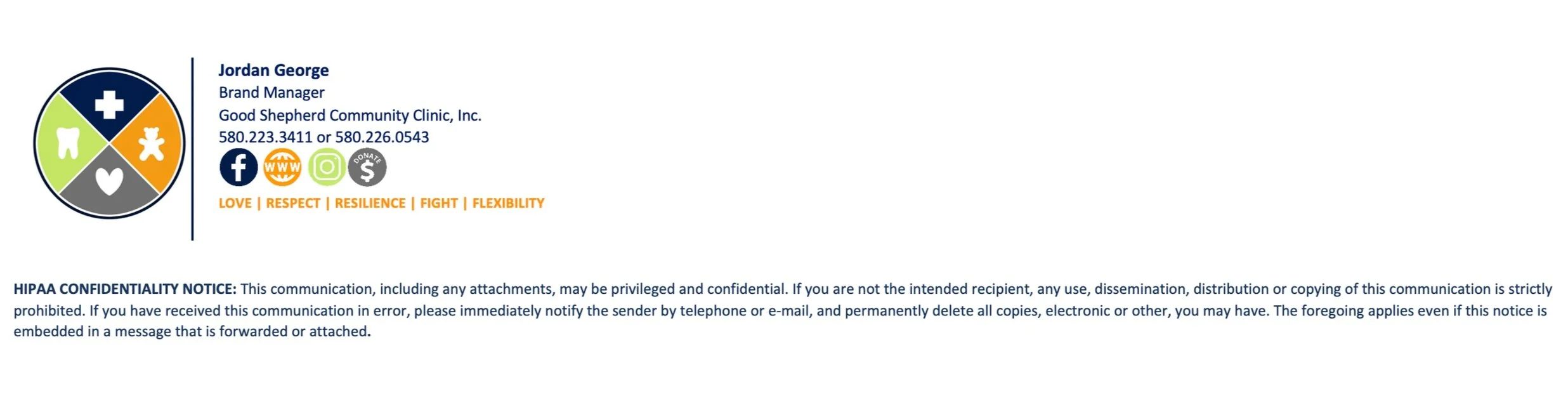
*Please refrain from changing yours with different fonts, colors, backgrounds, etc. We want everyone externally to recognize the GSCC logo, color scheme, etc. as well as people recognize the McDonald’s logo and colors!*
Let me know if you need help!